The easiest check on a new or second-hand monitor, laptop or phone is to fill the screen with one solid color at a time. Faulty dots that disappear in a busy image stand out at once on a flat color.
Dead pixel vs stuck pixel
- Dead pixel: stays black on every color and gives no light.
- Stuck pixel: stays lit in one color (red, green, blue or white). Flashing the screen through different colors for a few minutes can sometimes free a stuck pixel; a dead pixel cannot be fixed.
Test steps
- Clean the screen; dust and fingerprints can look like pixels.
- Set brightness to maximum and turn night mode off.
- On the Full Screen Color Test page, show white, black, red, green and blue in turn.
- Look closely at the whole screen on every color, especially the corners; the arrow keys or Space change the color.
- Note the position and color of any dots you find.
For a more detailed check you can use the Dead Pixel Test and the Screen Test pages.
When is it covered by warranty?
The number of dead pixels a manufacturer accepts depends on the brand and the ISO 13406-2 class; some brands will not replace a panel below a certain count. Check the warranty terms and return period before you buy, and run the test on day one.
If you see colors differently
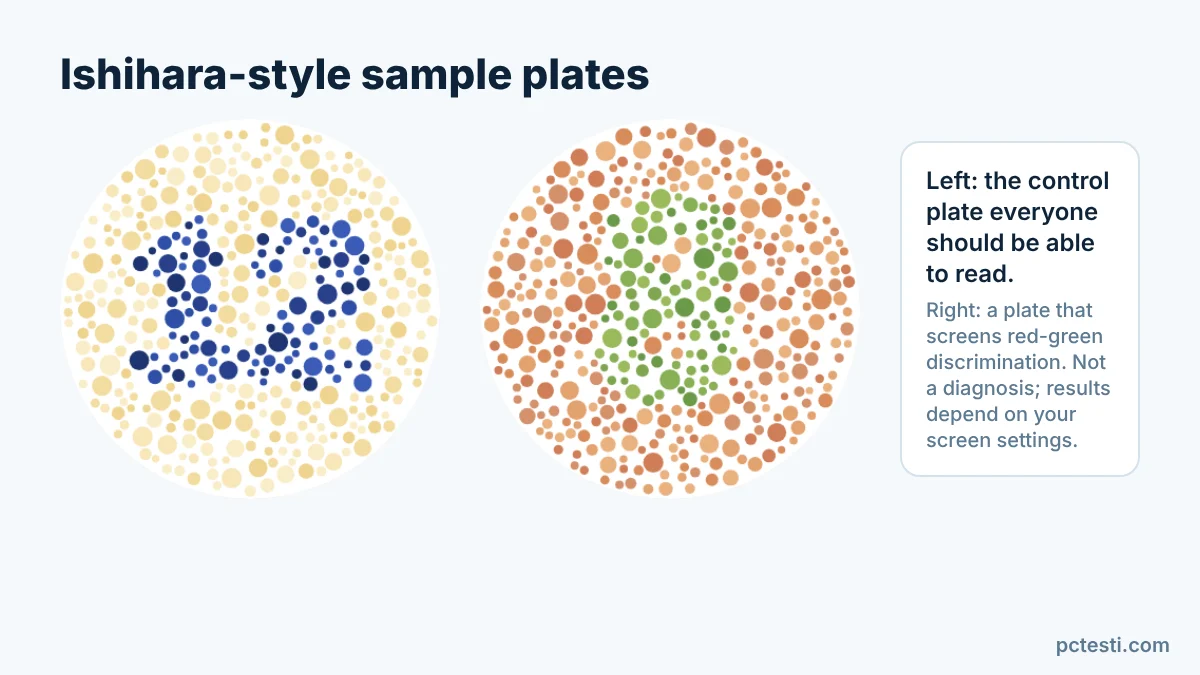
If the issue is not the screen but difficulty telling colors apart, the Color Blind Test offers a quick screening for red-green discrimination. It is not a diagnosis; the result depends on your screen’s color settings, and a proper assessment needs a test from an eye doctor or optician.
FAQ
Can I fix a stuck pixel myself? Sometimes: running the screen through fast color changes for a few minutes can help. A dead pixel is a hardware fault.
Does it work on a phone? Yes, start full screen in the browser and change colors by tapping.