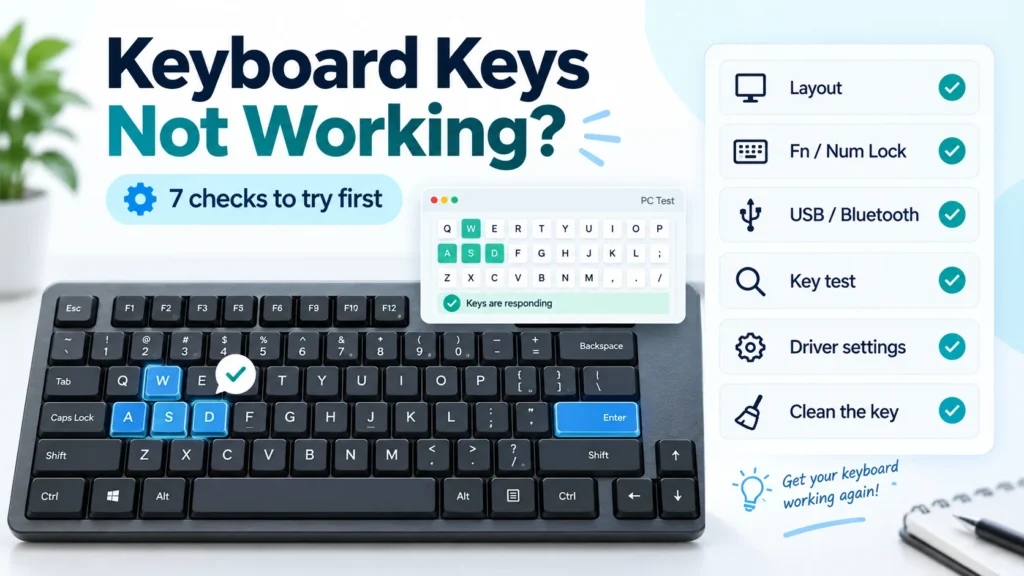
When some keyboard keys stop working, it does not always mean the keyboard is completely broken. A single key may fail because of dust, wear, liquid damage or a damaged switch, but the same symptom can also come from keyboard layout settings, Num Lock, Fn Lock, USB connection issues, Bluetooth drops, accessibility settings or driver problems.
In this guide, we will go through the most useful checks step by step, from quick software fixes to physical hardware problems, so you can decide whether you need to adjust a setting, clean the keyboard or replace it.
Check this first: Use the online keyboard test to see which keys are detected by your browser. If a key does not appear in the test, follow the steps below one by one.
Start by identifying the exact keyboard problem
Before trying fixes, describe what is actually happening. Is one letter not typing? Are several keys in the same area unresponsive? Do special keys like Enter, Space, Backspace, Shift or Ctrl fail? Or does the entire keyboard randomly stop responding?
- Only one key fails: dust, liquid residue or physical wear is more likely.
- Several nearby keys fail together: the keyboard matrix, a laptop ribbon cable or other internal hardware may be involved.
- The whole keyboard stops responding: check the connection, battery, Bluetooth pairing, USB port, drivers or operating system settings first.
1. Test the keyboard online
The first step is to find out whether the problem is really with the keyboard or with a particular program. A key may fail in one application but work normally somewhere else. In that case, the cause may be a shortcut, software setting or application-specific issue rather than the keyboard hardware.
Open the Keyboard Test and press the keys you believe are not working. If a pressed key appears on the on-screen keyboard, the browser is receiving that key input. If it does not appear, repeat the same key in another browser, another app or another device before deciding that the keyboard is faulty.
2. Restart the computer
Restarting may sound simple, but it can fix many temporary keyboard issues. The operating system, a driver or a background application may interfere with keyboard input for a while. Restart the computer and test the affected keys again.
If you use an external keyboard, unplugging and reconnecting it after the computer has started can also refresh the connection.
3. Check keyboard layout, Num Lock and Fn settings
Sometimes a key seems broken because the keyboard layout has changed. If the wrong language or layout is selected, the key may type a different character than expected. This is especially common with punctuation marks, symbols and non-English layouts. For example, switching between English, Turkish Q and Turkish F layouts moves several characters to different keys.
On Windows, check the language indicator in the taskbar and make sure the selected layout matches your actual keyboard. On macOS, review the input sources in the keyboard settings. If the wrong layout is active, change it first and test the same keys again.
On laptops, Fn Lock and Num Lock can also change how keys behave. Some models use part of the keyboard as a numeric keypad, while others use the F1–F12 keys for brightness, volume or screen controls. If these modes are enabled by mistake, normal typing may feel broken even though the hardware is working. Gaming and productivity keyboards may also use profiles, macros or custom key assignments, so check the manufacturer software too.
4. Check the USB, wireless or Bluetooth connection
If you use a wired USB keyboard, unplug it and connect it again. Try another USB port, preferably one directly on the motherboard at the back of a desktop PC. Front-panel ports can cause unreliable input because of loose connections or internal cable issues. Temporarily remove USB hubs, extension cables and adapters.
For wireless keyboards, check the battery level, receiver distance and connection. A low battery does not always shut the keyboard down completely. It may cause delayed typing, repeated input or missing keystrokes. If you use a USB receiver, make sure it is connected properly, try a different port and keep it closer to the keyboard.
For Bluetooth keyboards, remove the device from the paired devices list and pair it again. Weak Bluetooth adapters, too many connected devices or interference can all cause missed keys, typing delay or double input.
5. If only one key is not working, inspect and clean it
When only one key fails, dirt or debris under the key is a common cause. Crumbs, dust, hair or dried liquid can prevent a key from moving properly. Switch the keyboard off or disconnect it before cleaning. On desktop keyboards, gently turning the keyboard upside down, using low-pressure compressed air or cleaning around the key may help.
Mechanical keyboards are usually easier to clean if the keycaps can be removed safely. Laptop keyboards are more delicate, and removing a laptop key may break small plastic clips, so start with surface cleaning and compare the result with an external keyboard.
If liquid was spilled on the keyboard, stop using the device and disconnect power where possible. On laptops, liquid can also damage internal components. In that case, professional service is safer than repeated testing.
6. Test the keyboard on another device
If you use an external keyboard, trying it on another computer is one of the best ways to find out whether the problem comes from the keyboard or from your current system. If the same keys fail on another computer, a hardware problem becomes more likely.
If the keyboard works normally elsewhere, the issue may be related to the USB port, drivers, operating system settings or software running on the original computer.
7. Check accessibility settings and drivers
Windows accessibility settings can change keyboard behavior. Filter Keys, Sticky Keys or slow key settings may make keys feel delayed, ignored or stuck. These features can be enabled accidentally, especially on shared computers.
You can also open Device Manager, remove the keyboard device and restart the computer. Windows will usually detect a standard keyboard again and reinstall the driver automatically. If you use a gaming or other keyboard with manufacturer software, check for software and firmware updates as well. Before changing driver settings, save your work and make sure you have another way to control the computer, such as the on-screen keyboard or a spare USB keyboard.
If a key repeats unexpectedly, reacts late or behaves differently from normal input, the keyboard diagnostic tool can help you check for repeat, delay and unusual key behavior.
8. If key combinations fail in games
If your keyboard works while typing but certain combinations fail in games, the problem may not be a broken key. Some keyboards cannot detect every multi-key combination. This is often noticed with W, A, S, D, Shift, Ctrl and Space during gameplay.
This can be related to ghosting or rollover limits. For example, two keys may work together, but a third key may not be detected. Use the keyboard ghosting test to check how many simultaneous key presses your keyboard can register.
Gaming keyboards often advertise anti-ghosting or n-key rollover, but not every model behaves the same way. If only certain combinations fail, test the exact combination instead of assuming the game or keyboard is fully broken.
What to do if a laptop keyboard is not working
Restart the laptop first and test the affected keys with the online keyboard test. When only one or two keys fail, dirt or a physical key mechanism problem may be responsible. If the entire keyboard stops working, driver, firmware, liquid damage or an internal connection issue should also be considered.
An external USB keyboard is a good temporary solution, and it also helps you check whether the problem is in the laptop keyboard itself. However, if there has been a liquid spill, you notice a burning smell, keys are pressing themselves or the whole laptop keyboard remains unresponsive, professional repair is the safer option.
When should you repair or replace the keyboard?
If the same key fails in different browsers, different apps and another computer, physical failure becomes more likely. The same applies if the keyboard has suffered liquid damage or keys are physically broken. For inexpensive external keyboards, replacement is often more practical than repair. For mechanical keyboards, switch or keycap repair may be possible depending on the model.
For laptops, be more careful before deciding. If the key fails even outside Windows or in multiple environments, the laptop keyboard itself may need replacement. Costs and procedures vary by model. If the device is still under warranty, contact the manufacturer or an authorized service center. For out-of-warranty devices, a reliable repair shop can check the keyboard and its internal connection.
After fixing the issue, you can use the typing speed test to measure your WPM, accuracy and typing performance. Just make sure all keys work correctly before treating a speed result as a real measurement.
Quick checklist
- Check whether one key, several keys or the whole keyboard is affected.
- Use an online keyboard test to see whether the key is detected.
- Restart the computer and reconnect the keyboard.
- Verify keyboard language, layout, Num Lock and Fn Lock.
- Try another USB port or re-pair the Bluetooth/wireless keyboard, and check the battery.
- Clean the affected key if only one key is not working.
- Test the keyboard on another device.
- Check Filter Keys, Sticky Keys, drivers and keyboard software.
- Use a ghosting test if game key combinations fail.
Frequently asked questions
Why are some of my keyboard keys not working?
Common causes include dirt, liquid damage, a worn key mechanism, an incorrect keyboard layout, Num Lock or Fn Lock settings, a connection problem or a driver issue. Testing the keyboard online can help you identify which keys are actually being detected.
Why does my keyboard type the wrong letters?
This is usually caused by the wrong keyboard language or layout being selected. If the operating system switches to another layout, some characters may appear in different positions. Check your active keyboard language and input layout.
What should I do if my laptop keyboard is completely unresponsive?
Restart the computer and try an external keyboard first. If the laptop keyboard remains completely unresponsive, possible causes include a driver problem, firmware setting, liquid damage or an internal hardware connection issue.
If a key appears in the keyboard test, does that mean it is not faulty?
If the key appears in the test, the browser is receiving an input signal from it. However, a key that works intermittently, repeats characters or fails only in certain applications may still have a software setting or mechanical wear problem.
Why do some keys stop working in games but not when typing?
Many keyboards can only register a limited number of simultaneous key presses. If a combination such as W, A, Shift and Space fails in a game while each key works alone, ghosting or rollover limits are a likely cause. A ghosting test can show how many keys your keyboard detects at once.